
Pick a ready-made card, type your own message, and print it or save it as a PDF. These steps work in The Print Shop 9 and in PrintMaster 2027.
- Find a design. On the Home window choose Ready-Made Projects and search for "Christmas" (or Hanukkah, Kwanzaa, New Year). Open the card you like.
- Look through the pages. A card opens on the front. Click the page strip on the left to see the inside and the back.
- Write your message. Click the verse, select the words and type your own, for example "Merry Christmas from the Bennett family".
- Make it yours. Click a picture or the Photos panel on the right to swap in a family photo.
- Check it. Choose Preview in the Print group to see the page as it will print.
- Save and print. Click Save to keep it in My Projects, then Print. For e-mail, use Export and save a PDF.
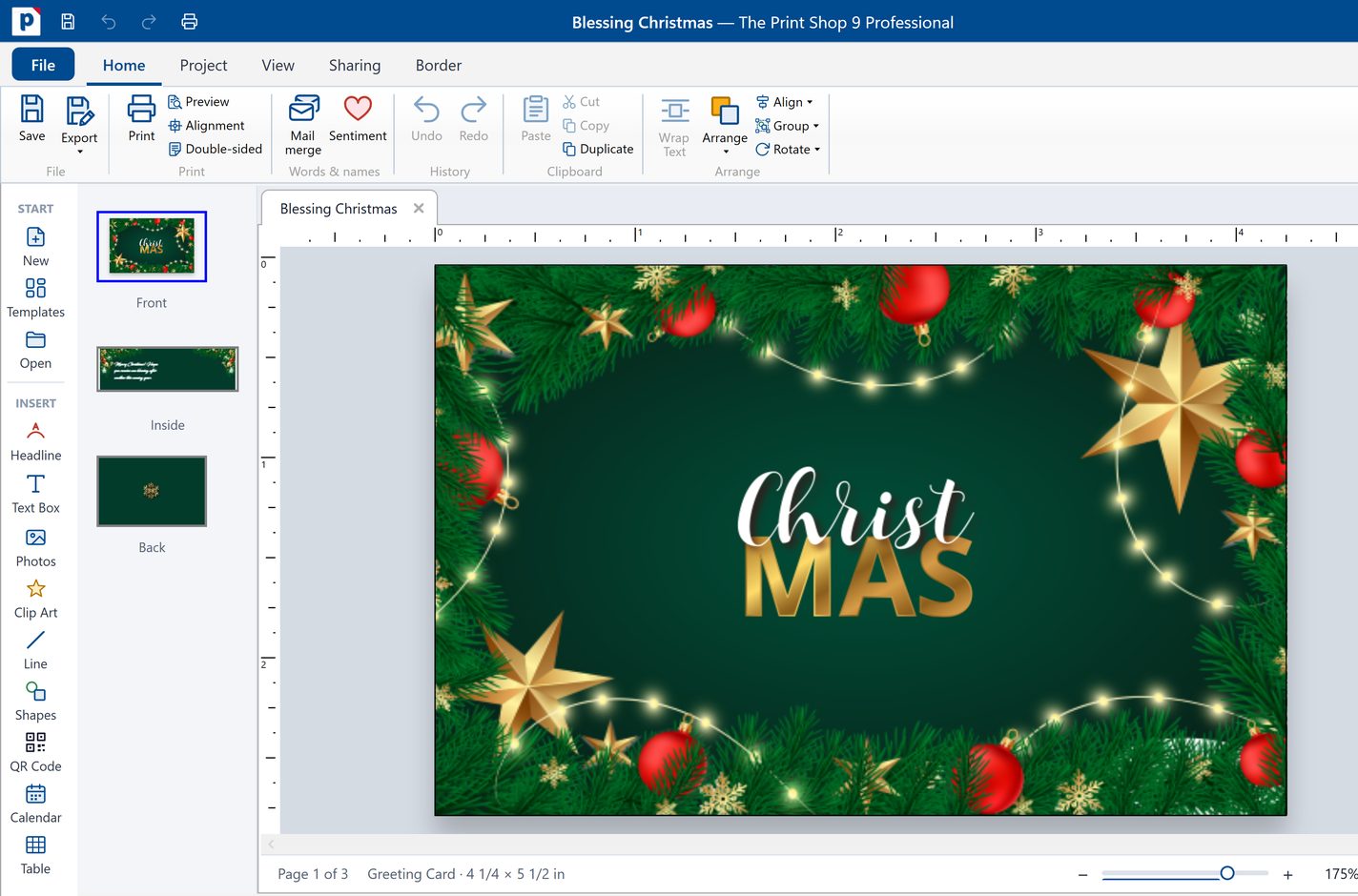
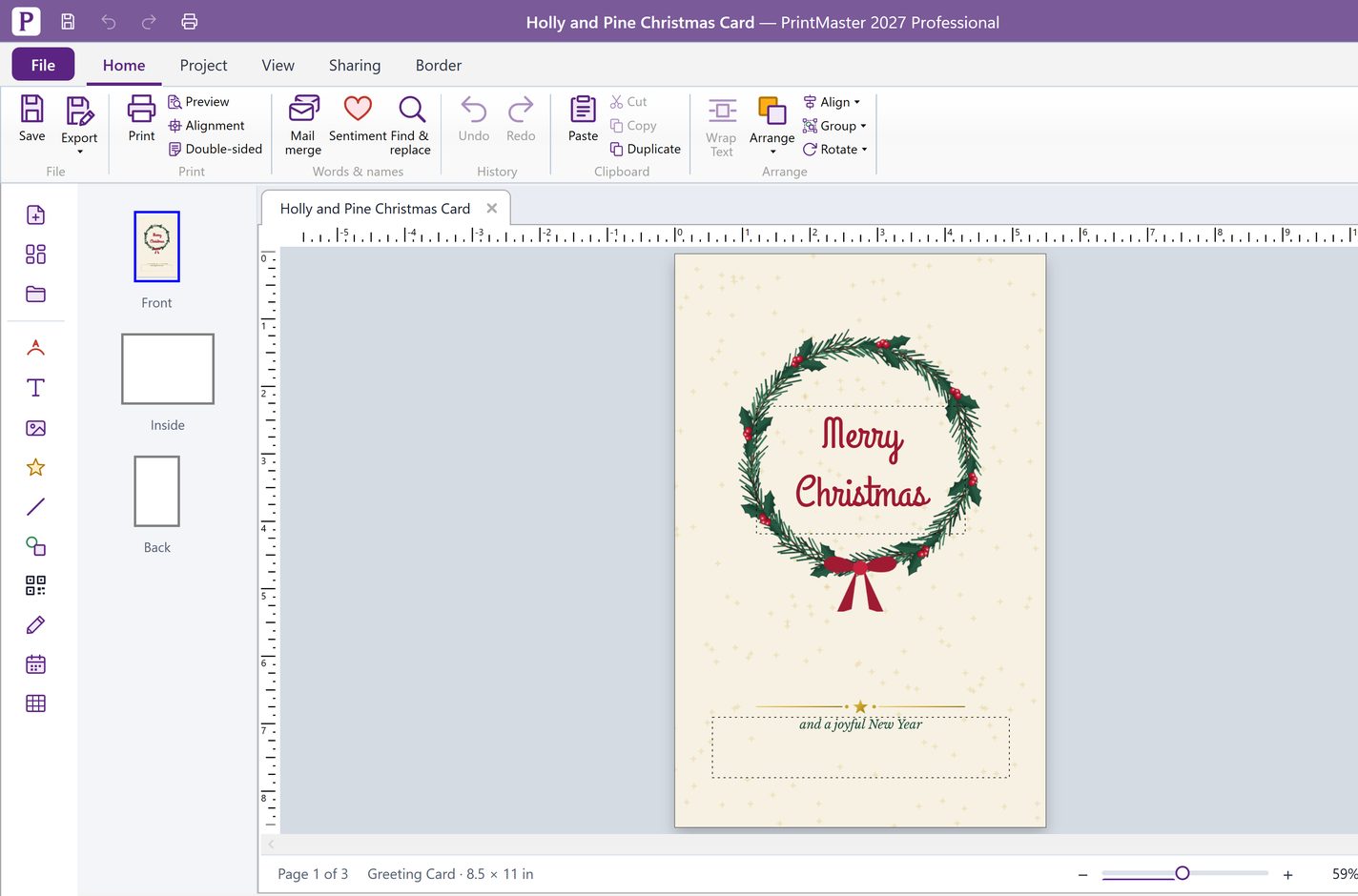
Holiday designs. The Print Shop 9 includes 25 holiday templates at install. PrintMaster 2027 gets its holiday themes from the optional Holiday Templates Pack [pack not live yet; confirm before linking].
Ready-Made designs come from the online library, so you need an internet connection and what you see can change over time.
The Print Shop 9 PrintMaster 2027
QA before publish: confirm the Home-window wording ("Ready-Made Projects", search box) and the Photos panel step on build 9.0.0.7 (video script PS9-06 UNVERIFIED list). Source: video script PS9-06 / PM27-04 click paths; adapted from "Creating greeting cards at home" (blog 2020-12-11) and the PrintMaster ideas page "A birthday card and matching envelope".
Companion video: PS9-06 (Syed records; go.encoreusa.com/2007 not created yet). Do not read out a design count.