The Print Shop 24: guides for the projects people make most
Short, practical how-tos, plus the full user guides and video tutorials for every version, and a real person on the phone when you're stuck.
- User guides and video tutorials
- 1-800-395-0277, Mon–Fri 8:00–4:30 Central
- [email protected]
All guides
- Cards
Greeting cards at home
From a ready-made design to an addressed envelope.
- Lists
Address book and mail merge
Print a batch of invitations or labels with every name filled in.
- Photos
Custom photo borders
Frame a picture with a border you design yourself.
- Batches
Master pages
Design once and repeat it on every page: class cards, name tags, handouts.
- Moving
Moving your old projects
Find your saved files and bring them to a new computer.
- Reference
Full user guides
Every tool in The Print Shop, version by version, from 3.0 to 8.0 and for Mac.
- Watch
Video tutorials
Short videos on headlines, calendars, labels, the photo editor and more, for each version.
- Read
The Print Shop blog
Tips and project ideas from the people who make The Print Shop.
- Search
Help & guides
Search every guide and tutorial by keyword.
Greeting cards at home
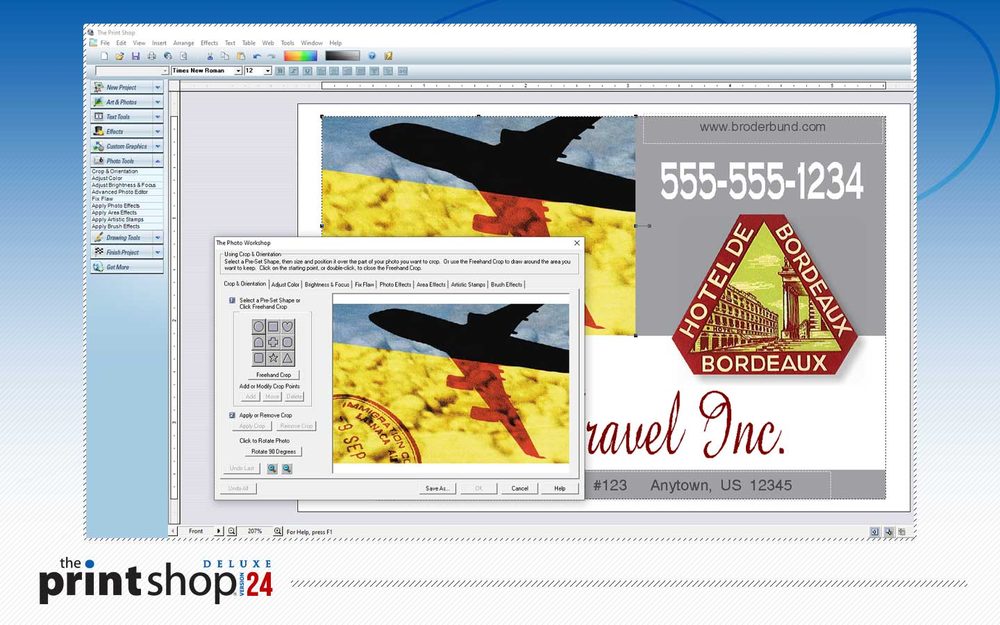
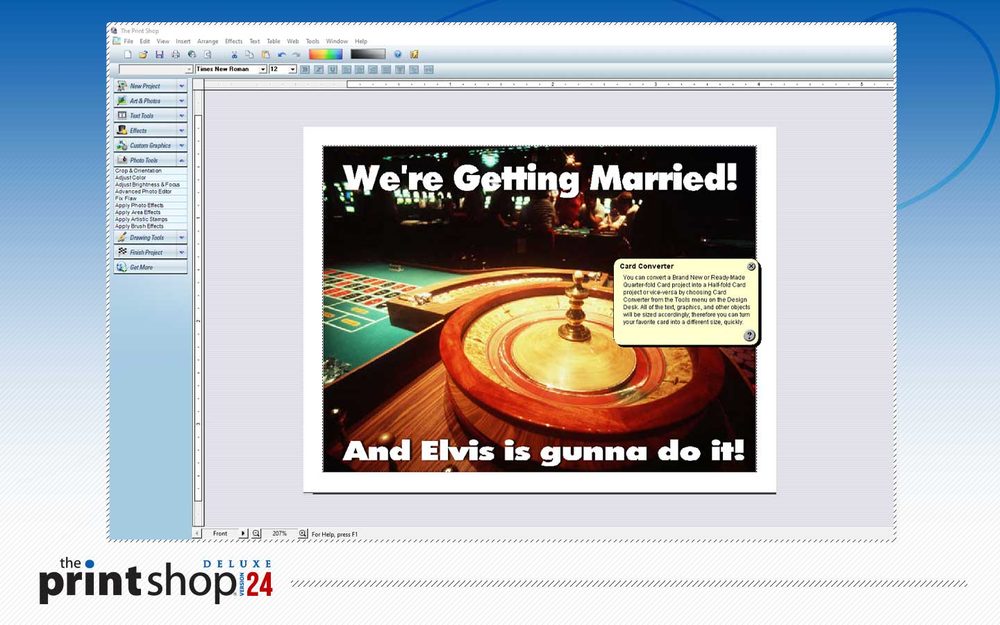
- Open The Print Shop and choose File › Open › Ready-Made Templates. Click See all to browse every card design, or pick a blank card to start from scratch.
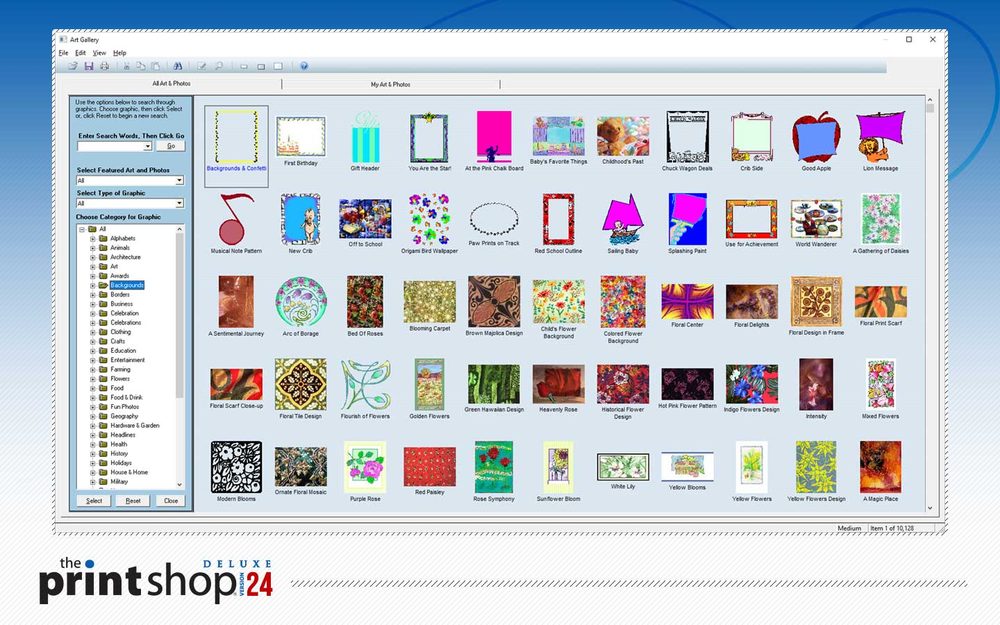
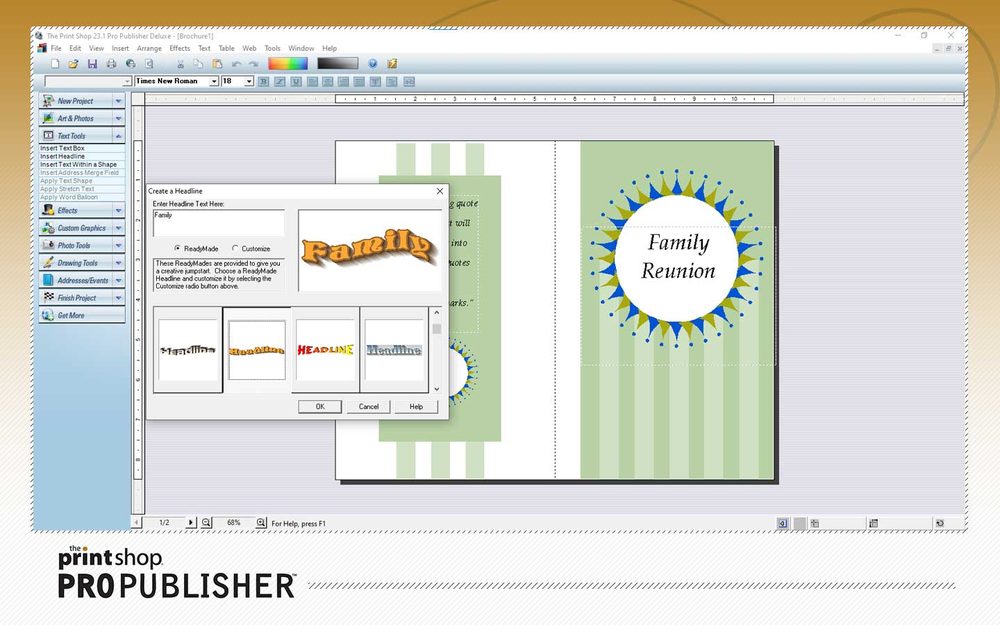
- Change the words, then add your own photos, clip art, backgrounds and word art.
- Print on card stock or plain paper, and fold.
- Address the envelope in the same program, so the card can go straight in the mail.
Address book and mail merge
- Open the Address Book (under Sharing, top left in The Print Shop 8).
- Add contacts by hand, or import them from an earlier version of The Print Shop.
- Sort people into lists: family, friends, colleagues, a class.
- Start a label, invitation or envelope project and use Mail Merge to fill in every name and address from a list.
Address book and mail merge are in The Print Shop 8, The Print Shop for Mac and PrintMaster. Check an edition before you buy.
Custom photo borders
- Start a letter-size project (8½ × 11 in).
- Use the photo import button to place a picture from your computer, then size it and fix it up in the photo tools.
- From the last tab at the top, choose Border › Custom Border and pick a style, colour and thickness.
Master pages: design once, print many
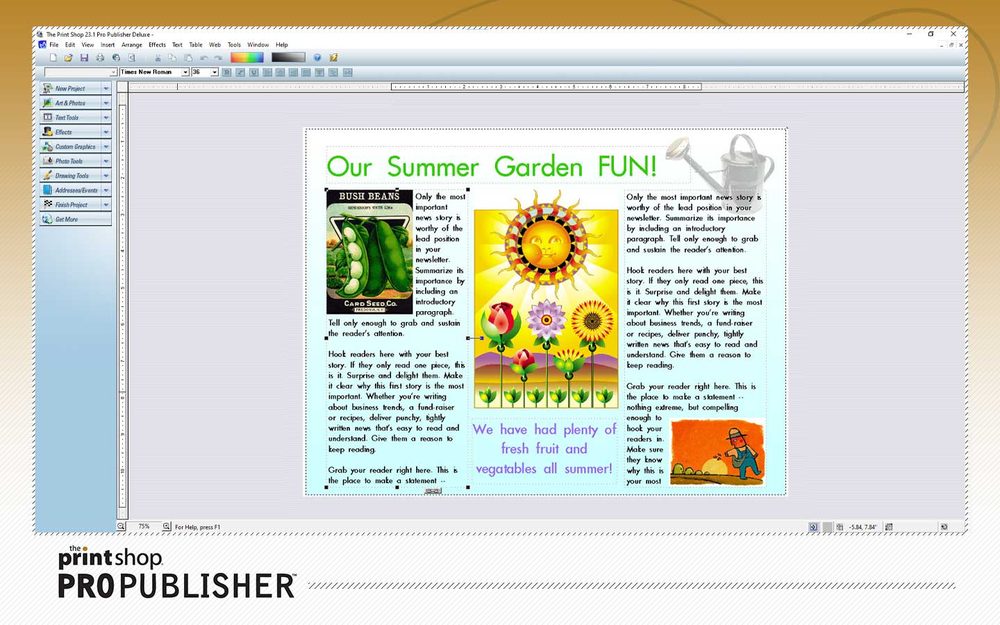
Anything you put on the master page appears on every page of the project, and a change on the master updates them all. A teacher can design one "Happy Holidays" card, then make one per student with only the name changing.
Which editions? Classic 24 calls it Master Overlay (every edition); in the modern line, master pages are a Professional 8 feature.
Moving your old projects to a new computer
- Find your projects. Most people saved them in Documents. Modern-line projects (The Print Shop 2.0 onward) end in
.PSProj. Type*.PSProjinto File Explorer's search box to find them all. - Select the files, right-click, and choose Send to › your USB flash drive.
- On the new computer, copy them into Documents and open them in your new Print Shop.
- Made in The Print Shop 10 to 23.1open in Classic 24
- Made in The Print Shop 2.0 to 7.0open in Print Shop 8
- Made in classic PrintMaster 8 to 18.1open in Classic 24
Not sure which version made your files? Call support on 1-800-395-0277 and we'll help you work it out.