
The Print Shop 24, PrintMaster 19 and Calendar Creator 13 can all make a PDF. The route differs a little in each.
PrintMaster 19
- Choose Save as PDF.
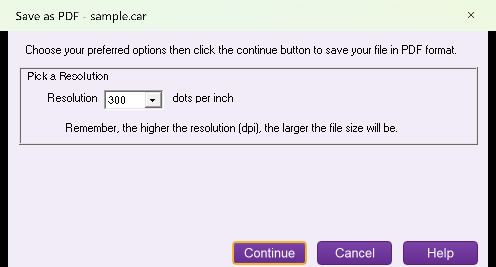
- Pick a resolution (the window reminds you that a higher dpi makes a larger file) and choose Continue.
- Name the file and Save.
Calendar Creator 13
- Choose Print.
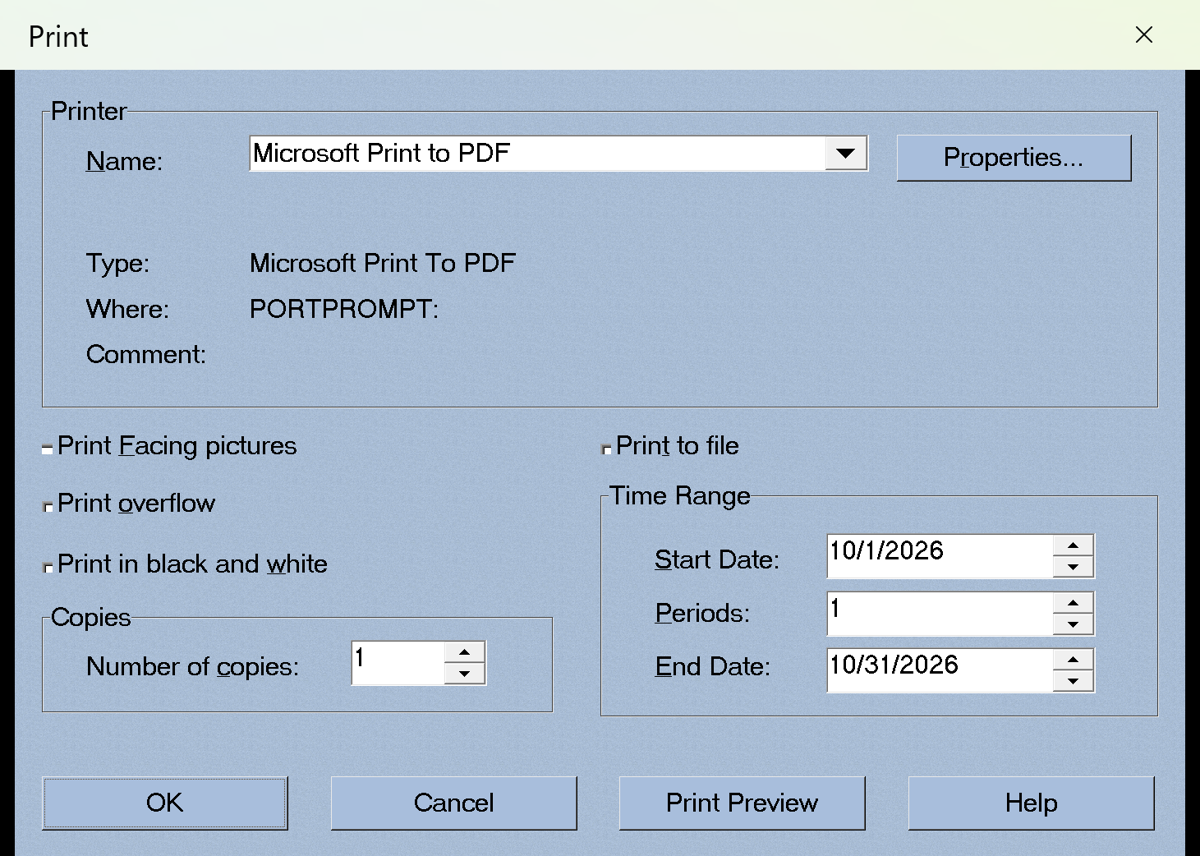
- Select Microsoft Print to PDF as the printer and choose Print.
- Name the file in the Save Print Output As window and Save.
The Print Shop 24
- Choose Save As PDF, which uses Microsoft Print to PDF.
- Name the file and Save.
Windows 11 or Windows 10. These steps were seen on licensed runs of PrintMaster 19.0.2 and Calendar Creator 13.0.1 and on The Print Shop 24.1.x.
QA before publish: menu names ("Save as PDF", "Print") are from the licensed-run screenshots only for PM19 and CC13; TPS24 Save As PDF is TPS24 RESULTS T5 (PASS). Re-run on 19.0.3 / 13.0.2. No counts, no upgrade copy. Source: classic-licensed screenshots under C:\ps8\wt\collateral\assets\classic-licensed; no personal folder contents are shown (the Save As dialogs were not used).