
Making a background
A simple background can be a solid color or a gradient. There are also lots of possibilities by creating a background fill using an image.

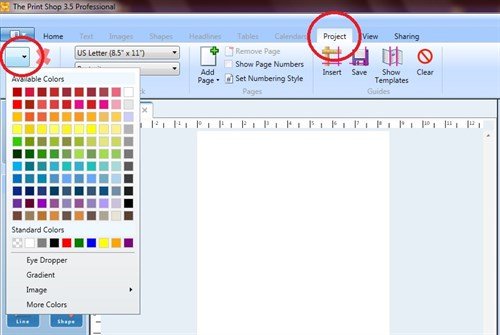
Start a new project, open the Project tab and click the Fill drop down arrow. From the drop down menu, choose Image and follow the prompts to select your image.
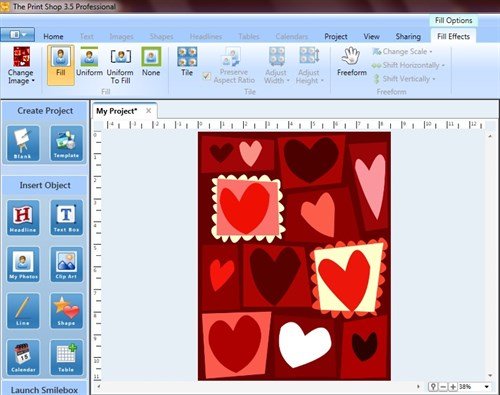
In this example, I have selected one of Print Shop's Clip Art. By clicking the Fill button, the image fills the entire project.
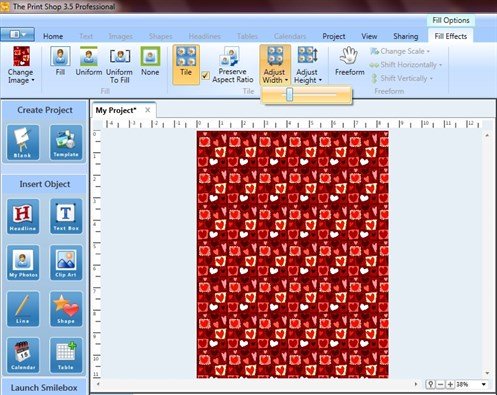
Click the Tile button to tile (replicate) the image. Use the Adjust sliders to increase/decrease the tiling effect.
Customize any project using this method of making a background.
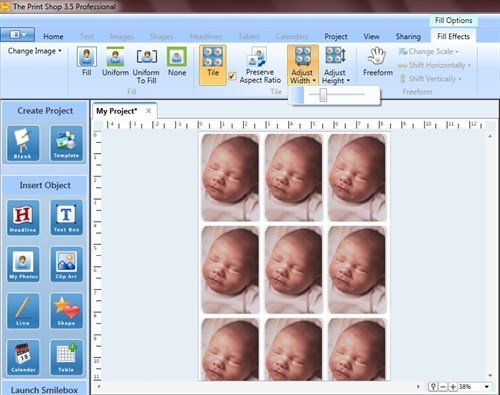
Tip: This method can also produce a page of wallet size photos.
written by lindarobin