
Drag and Drop Images
You can add your own images to a project via the My Photos button, but there's also another way, and it's quick and easy!
Open your folder where you have several images that you want to use in your project.
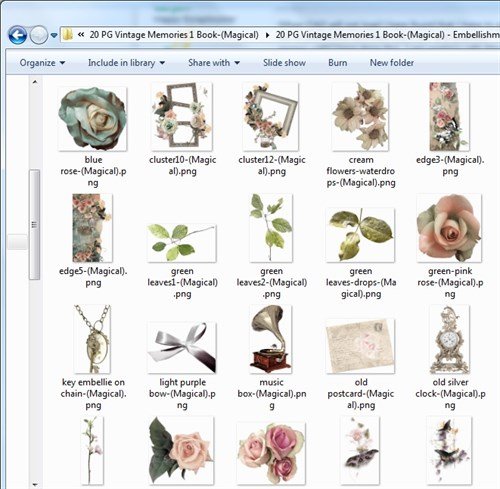
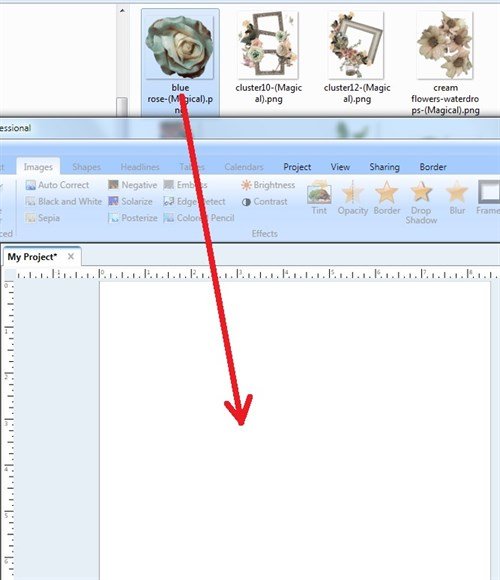
Display the two windows on your screen, the folder and your project. Click, drag and drop an image to your project.
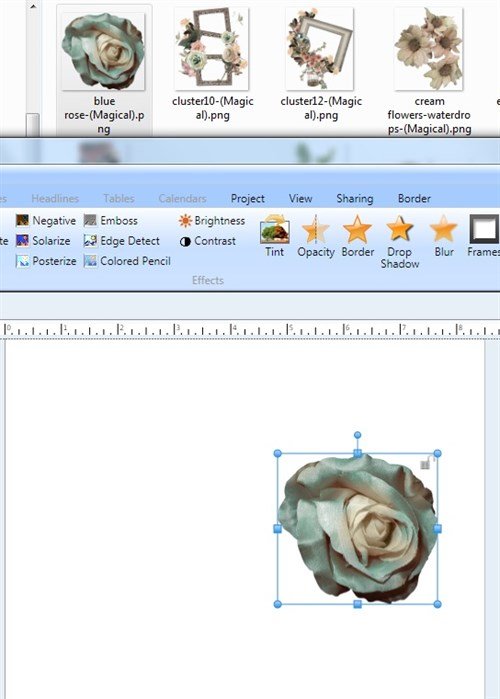
The image appears in your project.
Adding more images from the same folder is quick and easy... just drag and drop!
written by lindarobin