
Gradients
Gradients can be added to the background, to text, and to shapes.
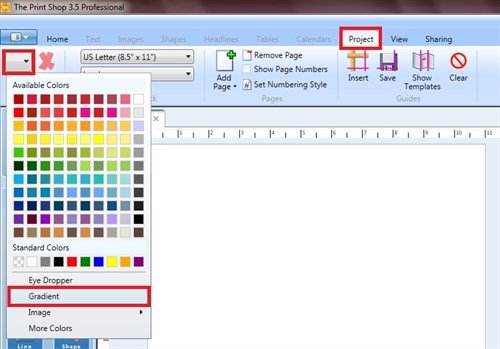
To add a gradient to the background, go the the Project Tab and click the dropdown arrow on the Fill button. From the options, choose Gradient.
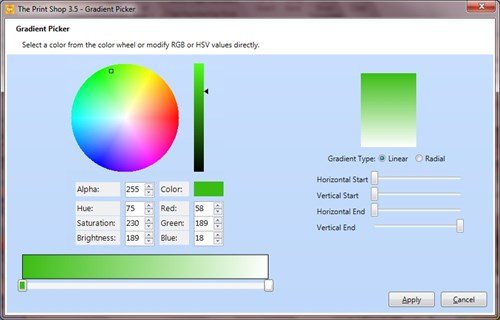
Click the little square on the left bottom of the slider, then click on the color wheel to select your starting color. Or you can change the numbers in the HSB or RGB boxes to get a specific color.
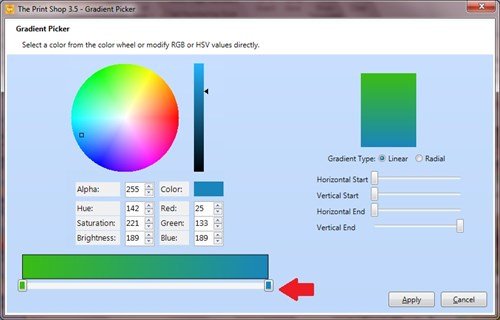
Click the little square on the right bottom of the slider, then click the color wheel to select your end color.
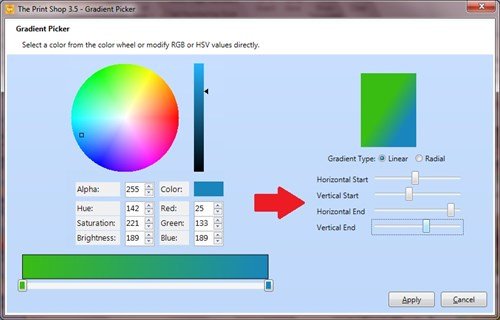
Play with the Horizontal and Vertical sliders to customize your gradient.
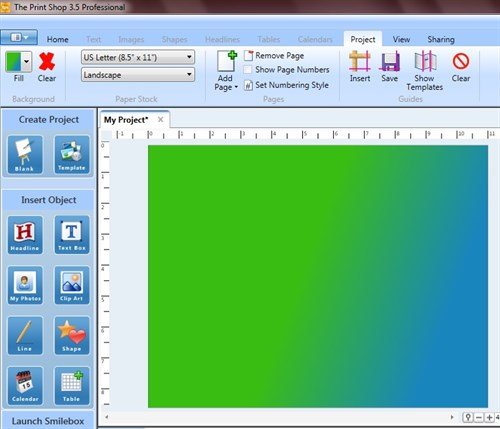
There you are - a simple two color gradient background.
Now let's make a gradient with more colors, on Headline Text. In the Headlines Tab, click the dropdown arrow on the color button, then click Gradient.
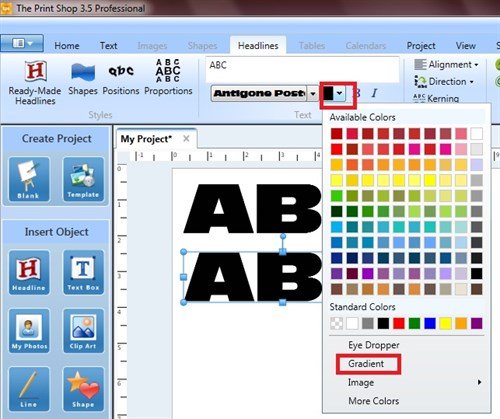
You can have up to 4 different colors for your gradient. Just click on the slider to apply a new gradient point.
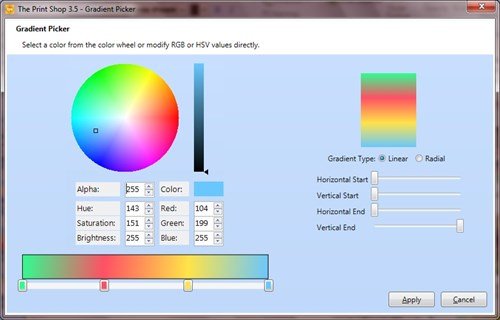
To apply your choices of color, click a little square, then click in the color wheel. Do this for each little square. You can slide the little squares to increase or decrease the amount of that color.
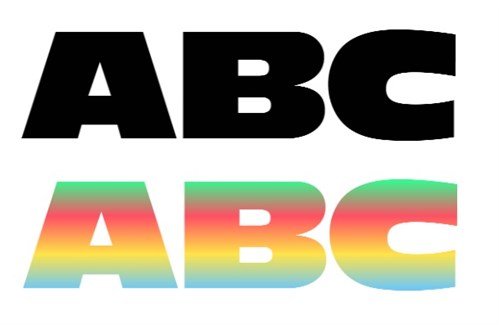
There you are - Headline Text with a 4-color gradient.
Now let's color a shape, this time with a radial gradient. In the Shapes Tab, click the dropdown arrow on the color button and choose Gradient.
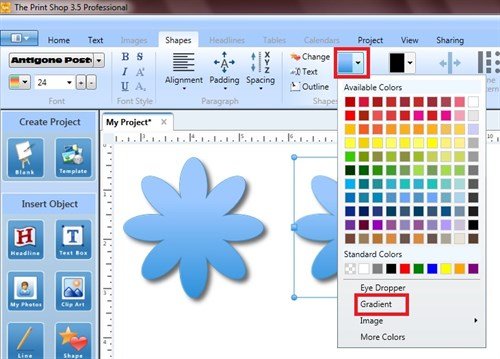
I applied colors to the four little squares. I selected the Radial Gradient Type.
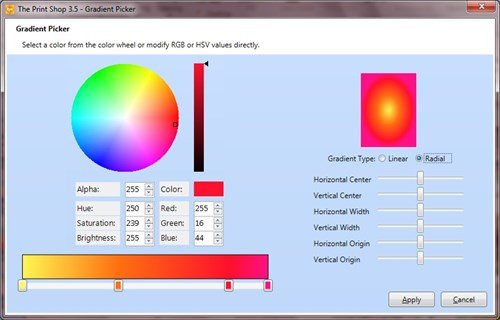

Now my flower is colored with a 4-color gradient.
Have fun making gradients!
written by lindarobin