
The Print Shop 6.0 - Start with a Ready-Made template
The Print Shop 6.0 has a new interface so this demonstration shows how to create your project by starting with a Ready-Made template.
Click the Ready-Made templates icon on the left. This brings up the 4 categories:
- Celebrations
- Documents
- Advertising
- Stationery
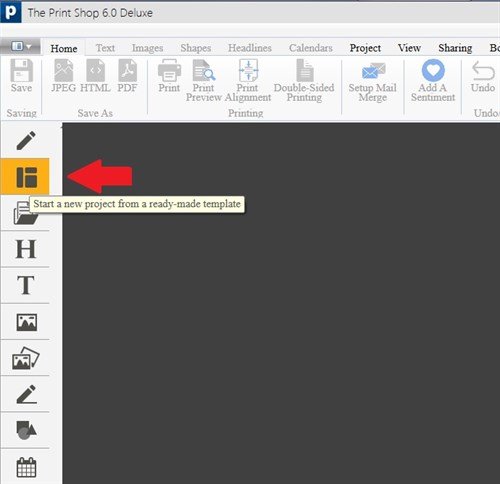
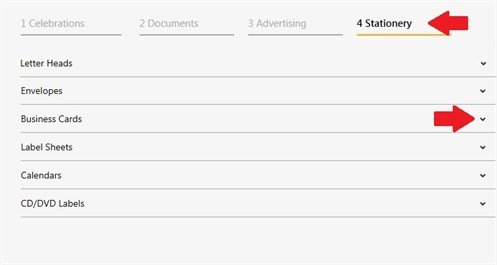
Each category has its associated project types. For example, click on Stationery and you will find Business Cards. Click the drop-down arrow to show a row of thumbnails depicting business card projects.
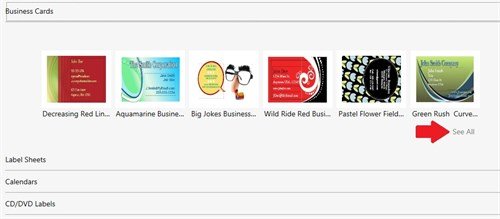
Click See All to display all the Ready-Made templates for business cards.
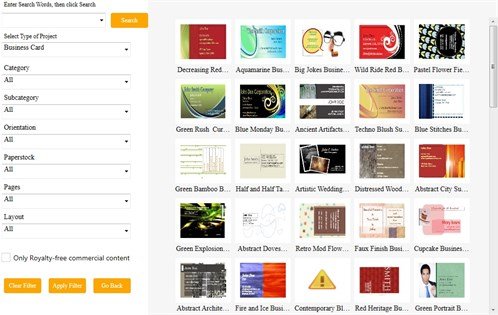
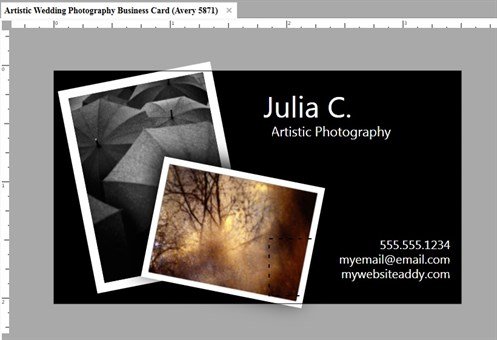
Let's choose the Artistic Wedding Photography Business Card.
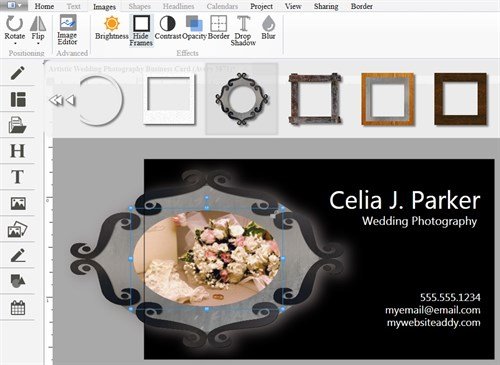
Customize the card with your own text and images. I removed the template's photos, added a new photo, then selected a frame for it, using the Frames tool.
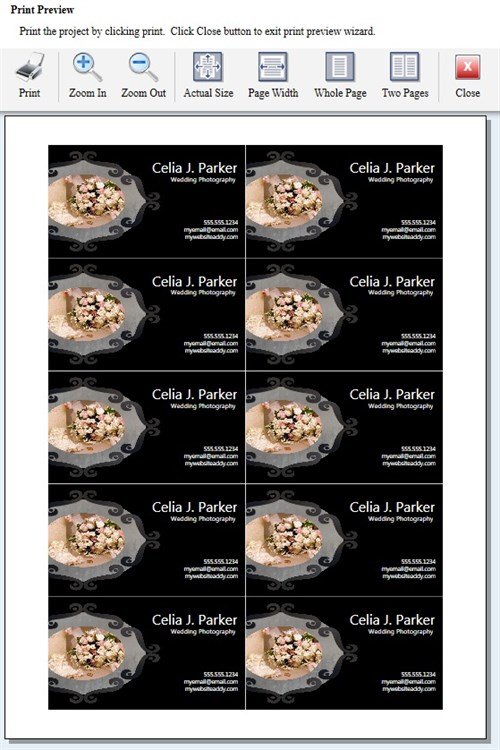
I am now ready to print onto Avery Business Card stock.
Users of version 3.0 and later will find the tools similar in 6.0, and a tour of the new interface will help find the right project template for you.
written by lindarobin