
Check Spelling
The Print Shop spell checker processes the entire project, checking all text boxes on unlocked project pages for spelling. To run the spell check:
- Click on the Check Spelling icon
 in the Share Ribbon Tab, or choose Check Project > Check Spelling from the menu.
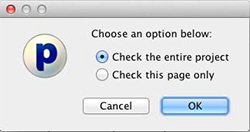
- Choose the option to check the entire project at the next prompt (recommended), unless you are resolving spelling issues on specific pages. After making a selection, click OK and the spell check will begin.
- If the spell checker finds misspelled words, it will launch the Check Spelling dialog. The following image and list describe the function of each button in the dialog:
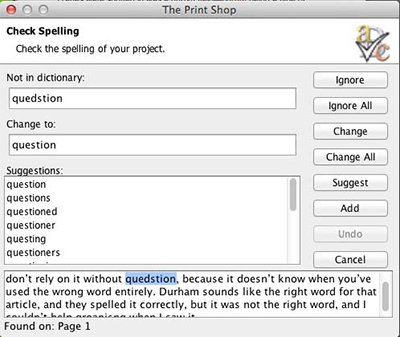
- Ignore - Leaves the current word as it is and moves on to the next misspelling.
- Ignore All - Leaves the current word and any identical words in the entire project as they are.
- Change - Replaces this instance of the word in the Not in dictionary field with the one in the Change to field.
- Change All - Replaces this and all subsequent instances of the word in the Not in dictionary field with the one in the Change to field.
- Suggest - If the spell checker doesn't automatically provide alternate words in the Suggestions field, click on this button.
- Add - Places the current word into the dictionary and continues with the spell check process.
- Undo - When making multiple changes within the same text box, this allows you to return the last word you changed to its former spelling.
- Cancel - Exits the spell checker.
- The spell check will pop up a dialog box to inform you when it has finished checking the text in the project.