
Using a Template from PrintShopPacks.com overview
In The Print Shop 3.0, a small store section has been added to the product which allows you to purchase additional content. This is called the Template store which will redirect you to http://printshoppacks.com.
These templates are similar to Ready-Made projects and they give you an overview of how a project will look. However many of these templates also include additional art pieces or embellishments in order to add extra things to your project.
Previews of the template packs can be hidden or shown by clicking on the arrow above the words Template Store on the right side of the design desk.
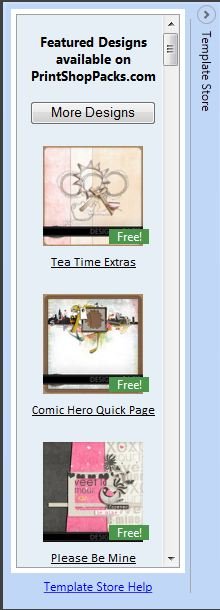

It's important to note that in the template store there are both Free and Paid template packs.
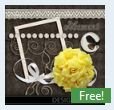
Free Templates are usually samples of the artist's work and come with less objects inside the project. These Projects are labeled with a Free tag in the lower right corner of the preview.
NOTE: All of the templates available in the Ready-Made Project Gallery are free.
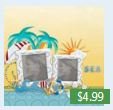
Paid Templates are collections of art, backgrounds, and other items which fit well together on a project. These often come with multiple pages and a lot of extra art to be used on your project. The cost of these templates are labeled in the lower right corner with their price.
To download any of these templates:
- Click on one of the template Previews like the ones above or Click on the more designs button.
- Clicking on a template preview will take you directly to its page to add it to the cart. Clicking on the More designs page will bring you to the home page of http://printshoppacks.com so you can browse and search through all of the available templates.
- Once you choose a template you will be brought to an overview page of what the template contains. (Since the image below may be too small to view you can visit the template page directly by clicking on the link here to go directly to the page.)
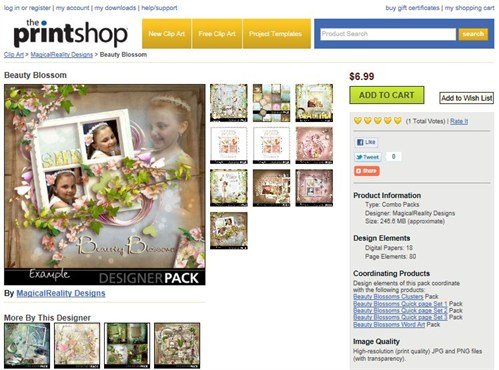
- Once you are on an overview page it's important to note a few items:
- The Price of the Template, which is found in the Top Right Corner.
- The Size of the files you will be downloading, which is found below Product information.
Note: Large file sizes can take a long time to download on slow internet connections. - Design Elements lists what you get with the download of this template.
Once you're satisfied with your choice of template you can continue by adding the template to the cart. Click on the Green Add to Cart button in the top right corner of the page to place the template into the cart and continue to the next step.