
Photo & Clip Art Management
The My Photos Gallery contains a collection of your own art and photos that you have imported and saved to the My Photos Gallery. These will appear in the My Photos Button in the Object Toolbar.
To better organize your Art and Photos, you can Tag Your Art and Photos, mark your art and photos as favorites, and delete art and photos in the My Photos Gallery.
Note: This option is only available to Art and Photos you have saved to the My Photos Gallery. See importing a photo for how to add an image to the My Photos Gallery.
Tagging Art and Photos
To make searching through your projects easier, you can add tags or keywords. To Tag a project do the following:
- Click on the My Photos Button. The My Photos Gallery is displayed.
Note: If you do not see your image listed make sure that the search bar is empty and click on search. - Click on the Actions menu below the image preview.
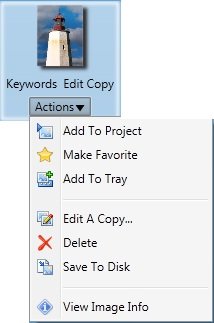
- Click on View Image Info option.
- This will display the Image information dialog box.
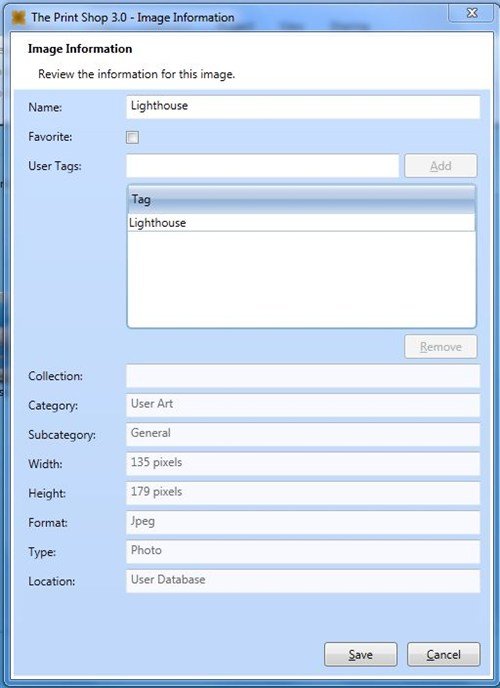
- Type the keyword into the User Tags dialog. Click Add after each keyword.
Examples are: Birthday, Wedding, name of person, etc. - Repeat step 5 for each keyword you want to add.
- Click on Save when you're done.
Mark an Image as a Favorite
To Mark your project as a favorite makes your project appear at the top of the search results list so that it can be searched for easily. To mark a project as a favorite do the following:
- Click on the My Photos Button. The My Photos Gallery is displayed.
Note: If you do not see your image listed make sure that the search bar is empty and click on search. - Click on the Actions menu below the image preview.
- Click on the Make Favorite option.

Delete an Image
If you do not need an image any more, you can delete it from the My Photos Gallery. To Delete an image do the following:
- Click on the My Photos Button. The My Photos Gallery is displayed.
Note: If you do not see your image listed make sure that the search bar is empty and click on search. - Click on the Actions menu below the image preview.
- Click Delete.