Spot Touchups
Spot touch ups can be applied in the photo editor.

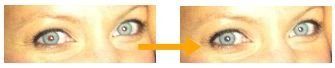
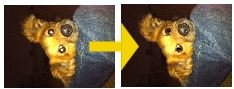
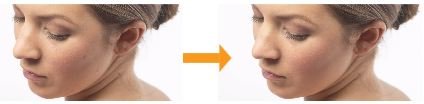
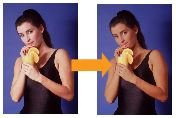
Below are samples of what each effect has on a photo:
- Red-Eye
- Pet-Eye
- Blemish Remover
- Wrinkle Remover
- Teeth Whitener
- Sunless Tanner
- Blur
Red-Eye
To Remove Red-eye from a photo:
- Open your photo in the Image Editor.
- Click on the Touch Up Button.
- Click on the Red-eye Button.
- Use your cursor to draw and move the circle around the red part of the eye.
- Click the Apply Button.
Pet-Eye
To Remove Pet-eye from a photo:
- Open your photo in the Image Editor.
- Click on the Touch Up Button.
- Click on the Pet-eye Button.
- Use your cursor to draw and move the circle around the glare part of the eye.
- Click the Apply Button.
Blemish Remover
To Remove a Blemish from a photo:
- Open your photo in the Image Editor.
- Click on the Touch Up Button.
- Click on the Blemish Button.
- Use your cursor to draw and move the circle around the Blemish.
- Click the Apply Button.
Wrinkle Remover
To Remove a wrinkle from a photo:
- Open your photo in the Image Editor.
- Click on the Touch Up Button.
- Click on the Wrinkle Remover Button.
- Use your cursor and click and Drag over the wrinkle.
Note: You can change the Brush Size by clicking on the Brush Size button and using the slider to increase its size. - Click the Apply Button.

Teeth Whitener
To Whiten Teeth in a photo:
- Open your photo in the Image Editor.
- Click on the Touch Up Button.
- Click on the Teeth Whitener Button.
- Use your cursor and click and Drag over the Teeth.
Note: You can change the Brush Size by clicking on the Brush Size button and using the slider to increase its size. - Click the Apply Button.

Sunless Tanner
To apply a Sunless Tan in a photo:
- Open your photo in the Image Editor.
- Click on the Touch Up Button.
- Click on the Sunless Tanner Button.
- Use your cursor and click and Drag over the the person's skin.
Note: You can change the Brush Size by clicking on the Brush Size button and using the slider to increase its size. - Click the Apply Button.
Blur
To apply a Blur to a Photo:
- Open your photo in the Image Editor.
- Click on the Touch Up Button.
- Click on the Blur Button.
- Use your cursor and click and drag over the part of the photo you want to blur.
Note: You can change the Brush Size by clicking on the Brush Size button and using the slider to increase its size. - Click the Apply Button.