
Using the Mail Merge Wizard
The Mail Merge Wizard is used to set up your project to merge correctly if the template that you are using has more than one merge field per page, such as mailing address labels.
To Open The Mail Merge Wizard:
- Create a Text Box
- Insert a Mail Merge Field
- Click on the Home Tab

- Click on the Setup Mail Merge Button

- The Mail Merge Configuration window will appear.
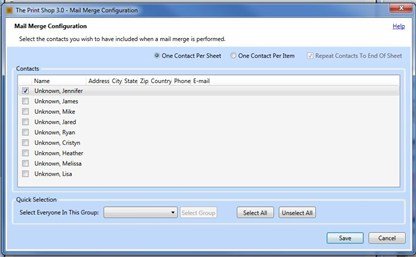
- Check the boxes next to the names of the contacts you want to Merge.
- Or click on the Select All button to select your entire contact list.
- Click on Save
- On Your Project it will appear as if nothing has changed. However you can Use Print Preview from the Home Tab, to view your updated projects.
- Use the Page Turner inside Print Preview to flip between multiple pages or projects.

- When You've reviewed how everything work continue by Printing your Project.