
Setting Up Event Reminders
Creating Events in the Address Book
In your Address Book your contacts have spots for:
- Birthday
- Spouse Birthday
- Anniversary
- And up to Two Custom Events
To Fill in these events for your contacts do the following:
- Open your Address book from the Sharing Tab.
- Click on one of your Contacts.
- Click on the Edit Contact Button.
- Click on the Family Tab to enter Birthday, Spouse Birthday, and Anniversary.
- Click on the Custom Tab to fill in up to two custom events for this contact. Examples of a custom event would be Graduation or other special celebration.
Creating Stand Alone Events
You can create Stand Alone reminders as well. To do this do the following:
- Click on the View Tab.

- Click on the Event Notifications Button. The Upcoming Event Reminder window will appear.
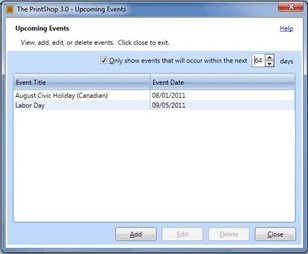
- Click on the Add Button. The Event Manager window will appear.
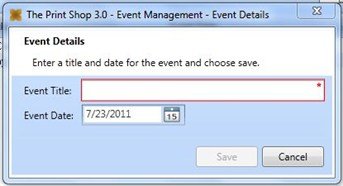
- Enter the event title.
- Enter the event date.
- Click the Save Button.
Viewing Upcoming Events
The default reminder is 7 days from the time the event takes place. A reminder will pop-up automatically whenever you open The Print Shop and have an Event due within 7 days. If you want to see your events more than 7 days early do the following:
- Click on the View Tab.
- Click on the Event Notifications Button. The Upcoming Event Reminder window will appear.
- Increase or decrease the number of days to show the events. Or you can uncheck the option for Only Show events that will occur in the next 7 days which will show all upcoming events scheduled.
Deleting Events
If you no longer want an event to be scheduled you can delete it by doing the following:,
- Click on the View Tab.
- Click on the Event Notifications Button. The Upcoming Event Reminder window will appear.
- Click an event on the list.
- Click on the Delete Button.