
Importing Contacts from an External Source
You can import contacts into your Address Book from many different sources. Including:
- Other The Print Shop 3.0 programs
- The Print Shop 20 - 23.1 Ultimate Mail Manager Program
- GMail
- Outlook
- Yahoo
- Flat File
Importing From The Print Shop 3.0
To import from The Print Shop 3.0:
- Click on the Sharing Tab.

- Click on The Print Shop 3.0 Button on the Importing Contacts Section. The Print Shop 3.0 Contact Import Tool will appear.
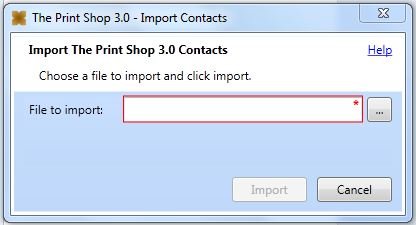
- Browse to the location of your Address book file by clicking on the "..." Button.
- Click on your address book file.
- Click on the Open Button.
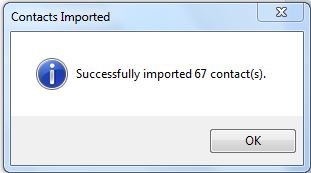
- The Print Shop will then tell you how many contacts were successfully Imported.
Importing an Address Book from The Print Shop 20- 23.1 UMM
To Import an Address Book from The Print Shop 20- 23.1 UMM:
- Click on the Sharing Tab.
- Click on The Print Shop 23 Button on the Importing Contacts Section. The Print Shop 23 Contact Import Tool will appear.
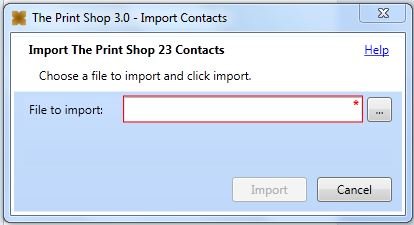
- Browse to the location of your Address book file by clicking on the "..." Button.
- Click on your address book file.
- Click on the Open Button.
- The Print Shop will then tell you how many contacts were successfully Imported.
Importing an Address Book from GMail
To Import an Address Book from GMail:
- Click on the Sharing Tab.
- Click on the GMail Button on the Importing Contacts Section. The Gmail Log in prompt will appear.
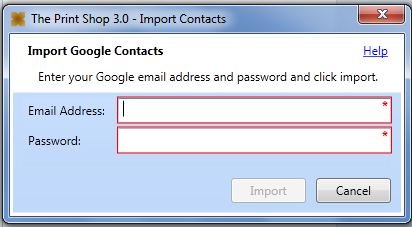
- Log in to GMail.
- Click on Import.
- The Print Shop will then tell you how many contacts were successfully Imported.
Importing an Address Book from Outlook
To Import an Address Book from Outlook:
- Click on the Sharing Tab.
- Click on the Outlook Button on the Importing Contacts Section. Outlook will open and ask you what you would like to open.
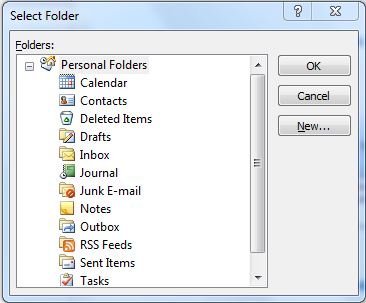
- Click on Contacts.
Note: This feature will only work with Contacts. - Click OK.
- The Print Shop will then tell you how many contacts were successfully Imported.
Note: Outlook Contacts cannot be edited in The Print Shop Address book.
Importing an Address Book from Yahoo
To Import an Address Book from Yahoo:
- Click on the Sharing Tab.
- Click on the Yahoo Button on the Importing Contacts Section. The Yahoo verification Window will appear.
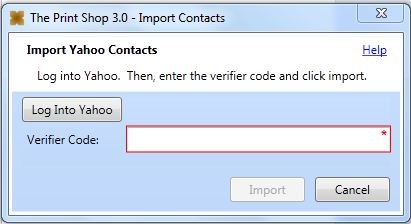
- Click on the Login to Yahoo Button.
- An internet Window will open to Yahoo Log In, Sign in to Yahoo.
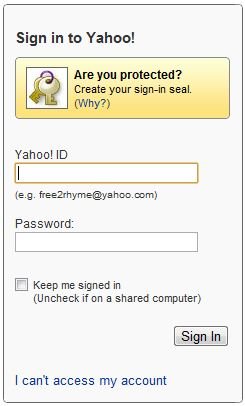
- Click on Sign In.
- Click Agree.
- Write down or copy your verification code.

Note: The code in the screenshot above will not work for you. Upon completing the steps above you will be provided with your own verification code. - Enter your verification code into the verification window.
- Click Import.
- The Print Shop will then tell you how many contacts were successfully Imported.
Importing an Address Book from a Flat File
To Import an Address Book from a Flat File:
- Click on the Sharing Tab.
- Click on the Flat File Button on the Importing Contacts Section. The Flat File Import Wizard will appear.
- Click on the "..." button to browse for your address book file.