
Object Alignment Tools
You can position objects to appear in a particular, preset position on the project page.
- On the Design Desk, select one or more objects that you want to position.
Note: To select multiple objects, hold down Control and Click each one. - Click on the Home Tab.

- Click on the Align Button menu.
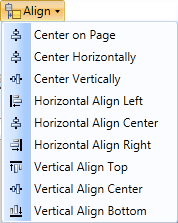
- If you have only one object selected the following options are available to you:
- Center on Page - centers selected object on the page.
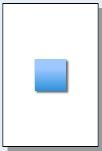
- Center Horizontally - centers selected object between the left and right sides of the page.
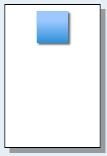
- Center Vertically - center selected object between the top and the bottom of the page.
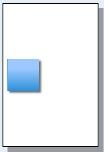
- Center on Page - centers selected object on the page.
- If you selected more than one object on the project you can align them with one another:
- Horizontal Align Left - aligns the left edges of the objects.
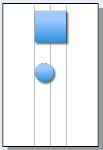
- Horizontal Align Center - centers the objects with one another Horizontally.
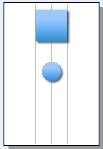
- Horizontal Align Right - aligns the Right edges of the objects.
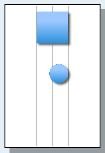
- Vertical Align Top - aligns the Top edges of the objects.
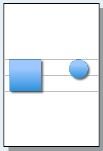
- Vertical Align Center - centers the objects with one another Vertically.
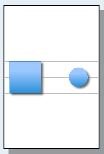
- Vertical Align Bottom - aligns the Bottom edges of the objects.
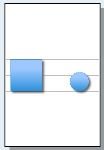
- Horizontal Align Left - aligns the left edges of the objects.
The selected objects display positioned according to your choices.