
Shape Paragraph Tools
Changing the Text Alignment
Text Alignment defines how your text is displayed on the page.
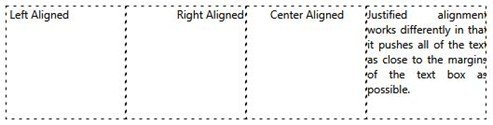
To change the Alignment of the text in your shape, start by inserting a shape and then double clicking on the shape to enter text. Once your shape has text inserted you can set the Alignment by doing the following:
- Click on the Shape Tab.

- Click on the Alignment Button.

- Use the drop down box to set your preferred Alignment. The available options are Left, Right, Centered, and justified. See the example above to help you choose the one that is best for you.
Changing the Text Spacing
Text Spacing is the distance between two or more lines of text.
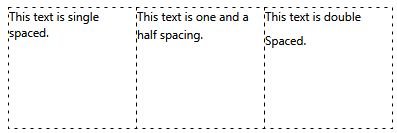
To change the Alignment of the text in your shape, start by inserting a shape and then double clicking on the shape to enter text into it. Once your shape has text inserted you can set the Alignment by doing the following:
- Click on the Shape Tab.
- Click on the Spacing Button.

- Use the drop down box to set your preferred Spacing. The available options are 1, 1.5, and 2.
Changing a Shape's Text Margins
To change the Margins of the text in your shape start by inserting a shape and then double clicking on the shape to enter text into it. Once your shape has text inserted you can set the Margins by doing the following:
- Click on the Shape Tab.
- Use the drop down slider tool to set your preferred Margin.