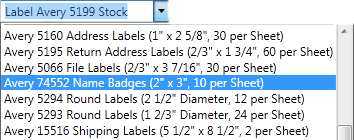
Using Avery Templates
Avery Templates are standardized templates for labels, business cards, and stickers. These templates are used with paper stock purchased from retail stores. You will find many Avery Templates available within the program. If there isn't one in the program though you can make it yourself by following the instructions for Creating a Custom Paper Stock.
Identifying Your Avery Stock
There are two basic pieces of information you need to know in order to pick your Avery stock correctly. The first is which type of project the stock was made for labels, business cards, stickers, or something else. The second item you need to know is what your Avery number is. Your Avery Number is usually printed on the packaging.
Creating a New Blank Project using an Avery Template.
From the New Project Wizard you can choose to Create a Project from Scratch. The option for Creating a Project from Scratch is displayed on the right hand side of the New Project Wizard.

Click on the Create from scratch option to display the Blank Project Wizard.
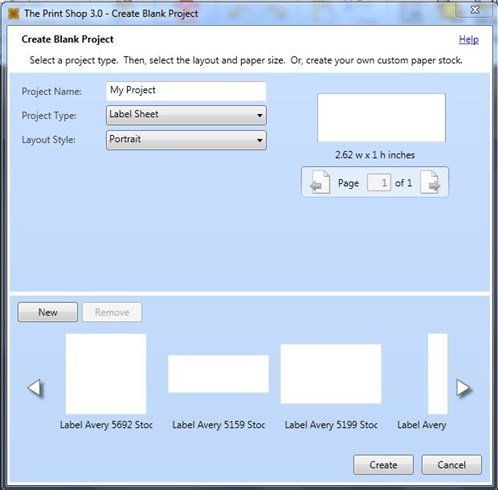
Select one of the following project types from the project type drop down menu to see the available Avery Templates.
- Business Cards
- Labels
- Stickers
After choosing one of the Project Types you will see the available paper stocks in the preview bar at the bottom.
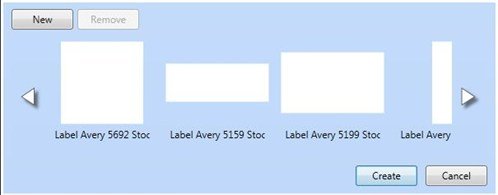
Click on the one you would like to use, and then click on the create button. A new blank project will open for you formatted to the template you chose.
Changing to a Different Avery Template
If you've already started your project and need to change or convert to a different Avery Template you can.
To use an Avery label template:
- Click on the Project Tab.

- Click on the Paper stock drop down menu and choose a different template or Choose New which will take you to the Custom Paper Wizard.