
Creating Headline Effects
There are several effects that you can apply to you Headlines. They are:
- Headline Shape Tool
- Letter Positioning
- 3D Depth
- Inner Outline
- Outer Outline
- Opacity
- Border
- Drop Shadow
- Blur
Headline Shape Tool
You can easily change the shape of your headline.

To apply a shape to your headline:
- Click the Headline you want to edit, the Headlines Tab becomes active.
- Click the Shape Button on the Headline Tab.

- Choose a shape from the drop down previews that you want to apply. The Headline will automatically adjust to the shape you select.

Letter Positioning
Changing the positions of the letters will adjust the height of each letter in your headline.

To apply a Letter Position to your headline:
- Click the Headline you want to edit, the Headlines Tab becomes active.
- Click on the Position button on the Headline Tab.

- Choose a Position from the drop down previews that resembles your desired effect. The Positioning will automatically adjust your headline.

3D Depth
Adjusting the 3D Depth will make the Headline appear that it is coming up off the page a bit.

To apply this headline effect:
- Click the Headline you want to edit, the Headlines Tab becomes active.
- Click on the 3D Depth Button.

- A drop down menu will appear with the following tools.
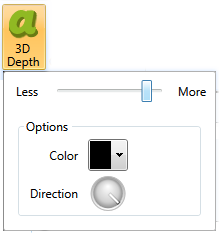
- Use the Slider tool to increase or decrease the Depth
- The Color Drop down will allow you to change the color of the depth
- And the direction tool will allow you to change the direction of where the text appears to be coming from.
Inner Outline and Outer Outline
Inner outline and Outer outline are to add borders around the outside of the letters of your Headline Text. As seen in the image below the white line around each letter would represent the Inner Outline and the red line around the outside of each letter would be the Outer Outline.
- Click the Headline you want to edit, the Headlines Tab becomes active.
- Click on either the Inner or Outer Outline Button.
 OR

- Each will have a drop down menu with the following tools.
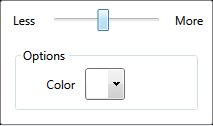
- Use the slider tool to increase or decrease the width of the outline.
- Use the color drop down to change the color of the outline.