
Calendar Display Options
These options change the way your Calendar will look when it's finished. In order to use these settings please do the following:
- Click on your Calendar.
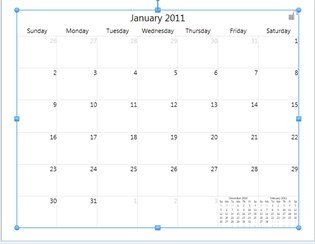
- The Calendar Tab will display.

- Here you can change the positioning of the numbers, grid line visibility and color, the fill color of a specific day, and the Day Title Length.
- Show Grid Lines - uncheck this option to hide the grid lines. To show them again recheck the option.
- Grid Line Color - change the color in this drop down to change the color of your grid lines.
- Show Next / Previous Months - displays mini calendars in the bottom corner of your calendar. Uncheck this option to hide the mini calendars. To show them again recheck the option.
- Fill Color - click a day that you want to fill with a color, and then use the fill color drop down to choose a color.
- Date Alignment - Click on one of the nine boxes above Date Alignment to choose where you want the date to be placed.
- Day Title Length - changes the length of the name of the day from Long - Short - Shortest, example: Monday - Mon - M.