
Adding a Calendar to an Existing Project
To add a Calendar to a Project you will need to do the following:
- Open your Project.
- Click on the Insert Object Calendar Button.
- A small Calendar will appear on your project.
- Click on the Calendar.
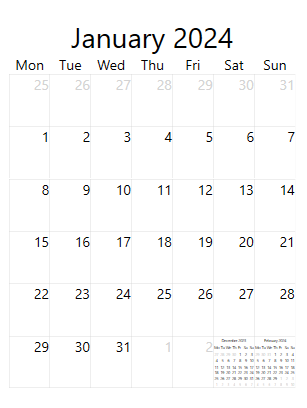
- The Calendar Tab will display.

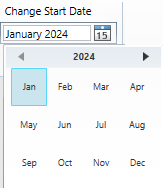
- Type the starting day of your calendar, or click on the mini Calendar icon next to the date to choose a year and month.
Your Calendar is now setup for use, you can now: