
Adding a Text Box
All text in The Print Shop is contained in a text box object. You first create the text box in your project, then you type text into it.
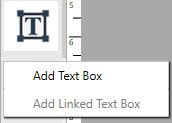
- On the Design Desk, click on Insert Text Box from the sidebar.

- Click Add Text Box from the drop-down.
- Your cursor will change to a plus icon. Line your cursor up on your project where you want the top left corner of your text box to start.
- Click and Drag your mouse to stretch the box to the size you want, and then release the mouse button.
- You can now type inside your text box.
Note: Clicking outside the text box will deactivate the text box. To add text or edit text, double click the text box.
Once you have inserted text in the text box the following tools will become active: