
Paragraph Tools
Changing the Text Alignment
Text Alignment defines how your text is displayed on the page.
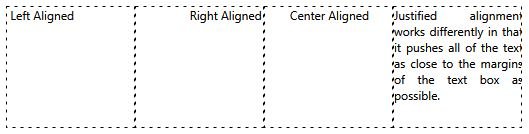
To change text alignment:
- Insert a text box.
- Click the Text you want to edit, the Text Tab becomes active.

- Click on the Alignment Button.
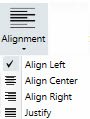
- Use the drop down box to set the Alignment. The available options are Left, Right, Centered, and Justified. See the example above to help you choose the one that is best for you.
Changing the Text Spacing
Text Spacing is the distance between two or more lines of text.
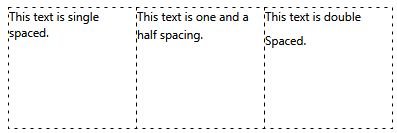
To change Text Spacing:
- Insert a text box.
- Click the Text you want to edit, the Text Tab becomes active.
- Click on the Spacing Button.
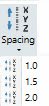
- Use the drop down box to set the Text Spacing. The available options are 1, 1.5, and 2.
Changing the Text Box Margins
To change the Text Box Margins, start by inserting a text box.
To change Text Box Margins:
- Insert a text box.
- Click the Text you want to edit, the Text Tab becomes active.
- Use the drop down slider tool to change the margins.
Creating Bullet Points
Bullet points are used to make lists of items.
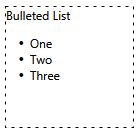
To add Bullet Points:
- Insert a text box.
- Click the Text you want to edit, the Text Tab becomes active.
- Click on the bullets button.
- Type in your text after the bullet point
- Now Every time you start a new line of text by using the enter key a new bullet point will appear.
Note: In order to stop using bullet points click on the enter key on your keyboard again and it should disappear and allow you to continue typing outside of a bulleted list.