
Shape Text & Font Tools
Changing the Font of a Shape
To change the Font of text in a Shape, start by Adding a shape. Once a Shape is inserted you can set the Font by doing the following:
- Double Click on the Shape.
- Type in your text.
- On the Shapes Tab click on the Default Font.
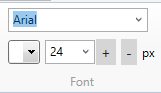
- Use the drop down box to set it to your preferred font.
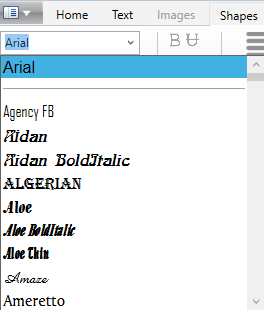
Please Note: The available Fonts will depend on the fonts that are installed on your computer. The screenshot above is NOT representative of Fonts that come with The Print Shop 4.0
Changing the Color of Text in a Shape
To change the Color of Text in a Shape, start by Adding a shape. Once a Shape is inserted you can set the Color by doing the following:
- Double Click on your Shape.
- Type in your text.
- On the Shapes Tab click on The Default Color.
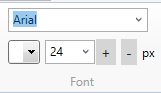
- Use the drop down box to set your preferred Color.
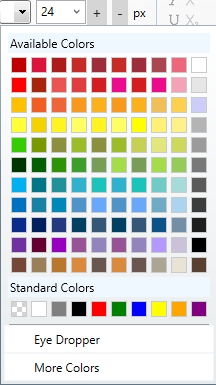
You can also use the Eye Dropper tool to select a color from anything you click on or the white and grey checkerboard color to choose a transparent color.
Changing the Size of the Text in a Shape
To change the Size of the Text in a Shape, start by Adding a shape. Once a Shape is inserted you can set the Size by doing the following:
- Double Click on your Shape.
- Type in your text.
- On the Shapes Tab click on The Default Size.
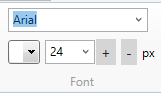
- Use the drop down box to set your preferred Size.

Using Text Font Styles
The following text styles can be applied to your text in The Print Shop 3.0, 4.0, 5.0 and 6.0.
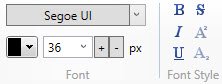
- BOLD: Highlights the word to make it stand out more
- Italics - gives the words a slight tilt. Normally to emphasize something.
- Underline - Places a line under your text.
- Strikethrough - Places a line Through your text to show words that have been Deleted. These words will still Print.
- SuperScript - Makes the word smaller and higher up on a line.
- SubScript - Makes the word smaller and farther down on a line.