
Zoom Tools
You can get a closer look at any area or see a larger portion of your project by zooming in and out.
To zoom in or out on your project please do the following:
- Click on the View Tab.
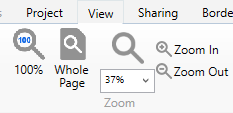
- Use the Magnifying Glass Drop Down to select a preset Zoom Level.
Note: 100% would be how it would appear printed. - In The Print Shop 3.5, you also able to select a Zoom Level within the workspace. This Zoom feature can be found in the bottom right corner of the workspace.

Whole Page Zoom
This will zoom your project out so that you can see the entire page of the project. To do this do the following:
- Click on the View Tab.
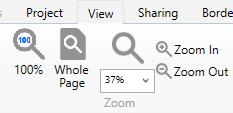
- Click on the whole Page Zoom Button.
100% Zoom
This will zoom in so you can see how large the print would look if it were printed. To do this please do the following:
- Click on the View Tab.
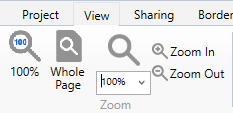
- Click on the 100% Zoom Button.